Add clients and contacts
Clients hold the details printed on invoices (address, country, tax ID) and the contacts invoices are emailed to.
Who can do this: Admins and managersUpdated · 2 min read
Add a client
Step 1: Click Projects in the top menu, then Clients.
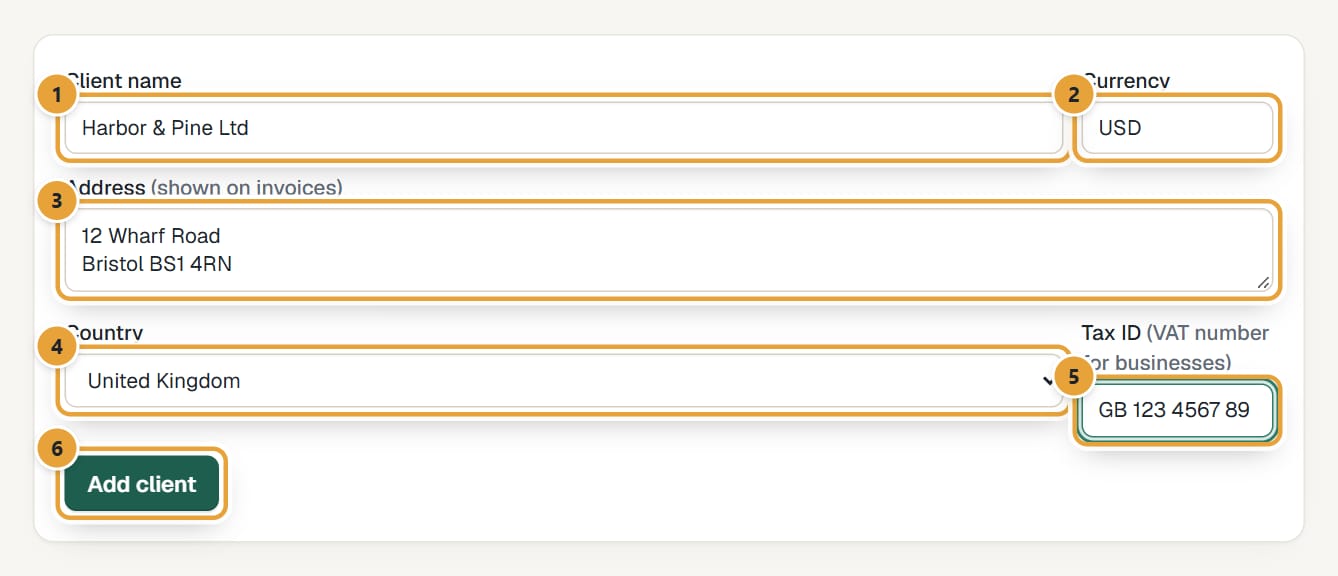
Step 2: Fill in Client name.
 (opens the full-size image)
Step 3: Check Currency: the 3-letter code (USD, EUR, GBP…) this client is invoiced in. It starts with your account's currency.
Invoices for this client use this currency. Choose it carefully: a client's invoices should all be in one currency.
Step 4: Fill in Address (shown on invoices) and choose the Country.
Step 5: If the client is a business with a VAT or tax number, fill in Tax ID.
In Europe this matters: it's printed on invoices, it's how LockedHours knows the client is a business, and reverse charge needs it. See Taxes, VAT and reverse charge.
Step 6: Click Add client. The client appears in the list below with its currency and number of projects.
On a phone, Clients opens on the list. Tap New client at the bottom right to fill in the same form in a sheet, or tap a client to open its page.
Add contacts
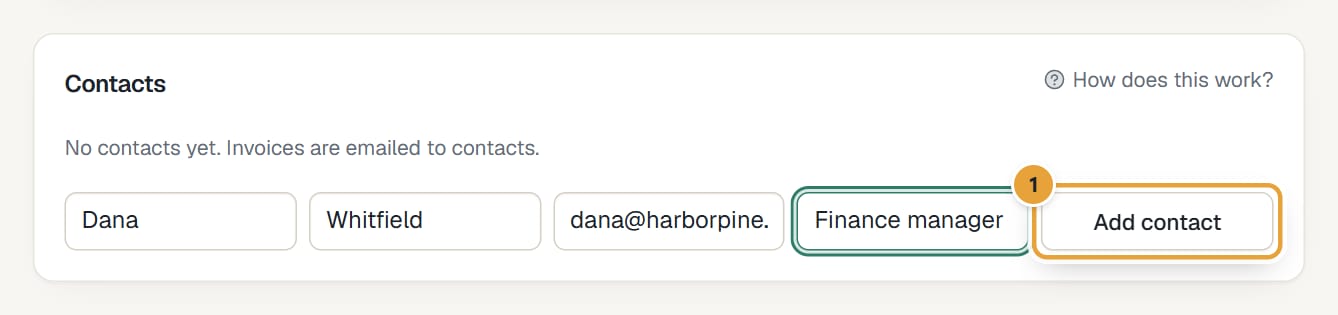
Invoices are emailed to a client's contacts, so add at least one with an email address.
Step 1: In Clients, click the client's name.
Step 2: Under Contacts, fill in First name (required), and optionally Last name, Email and Title, then click Add contact.
 (opens the full-size image)
Every contact with an email is filled in automatically in To when you send that client an invoice, and recurring invoices set to send automatically go to all of them. To remove a contact, click Remove next to it.
Edit or archive a client
Open the client, change any field and click Save client. Untick Active and save to archive it: archived clients are marked archived in the list, aren't offered for new projects or invoices, and keep all their history.
Common problems
"Use a 3-letter currency code, like USD or EUR."
Type the ISO code of the currency, not its symbol or name.
I can't find the Clients page
Clients are under Projects, and only admins and managers see the button.
Invoices for this client can't be issued
Check the client's address, country and tax ID: some countries require them. The invoice page lists what's missing. See I can't issue an invoice.
Didn’t find what you needed?
Ask in Help inside the app, or email [email protected]. We aim to reply within 2 business days.