Create a project: type, rates, tasks and team
A project ties together a client, how you bill (by the hour, a fixed fee or not at all), the tasks people track to, the team and, optionally, a budget.
Who can do this: Admins and managersUpdated · 3 min read
Before you start
- The client exists (or the project is internal). See Add clients and contacts.
- Your tasks are set up. See Set up tasks.
The basics
Step 1: Click Projects in the top menu, then + New project.
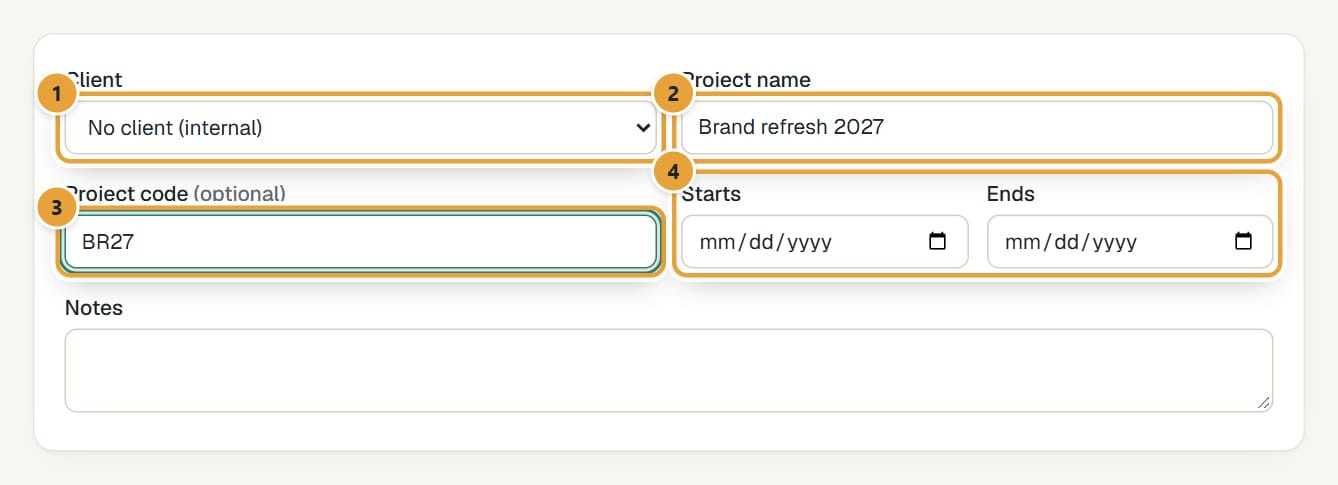
Step 2: Choose the Client, or No client (internal) for internal work.
 (opens the full-size image)
Step 3: Type the Project name, and a Project code if you use them (it appears in square brackets in time-tracking lists).
Step 4: Optionally set Starts and Ends dates, and Notes for the team.
Project type and rates
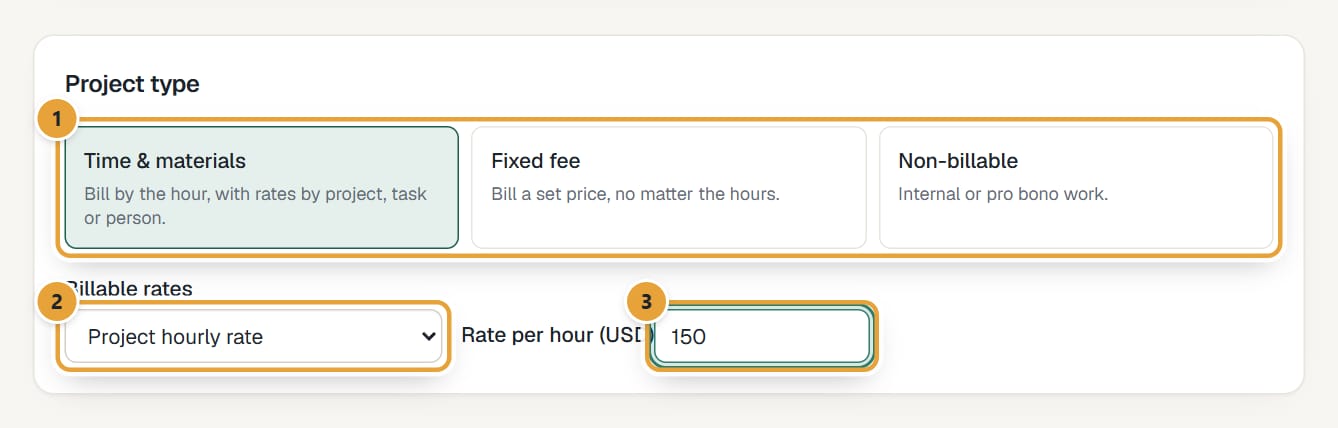
Step 1: Under Project type, click one of the three boxes.
Time & materials: bill by the hour. Fixed fee: bill a set price no matter the hours; type it in Project fee. Non-billable: internal or pro bono work; every hour is non-billable.
 (opens the full-size image)
Step 2: For billable projects, choose Billable rates: Project hourly rate (one rate for everyone; type it in Rate per hour), Task hourly rates (a rate per task), Person hourly rates (a rate per person) or No hourly rates.
How LockedHours picks the rate for each hour: How hourly rates work.
Budget (optional)
Under Budget, choose a Budget type if you want to follow hours or fees against a limit and get an email alert. Everything about it: Set project budgets and alerts.
Tasks and team
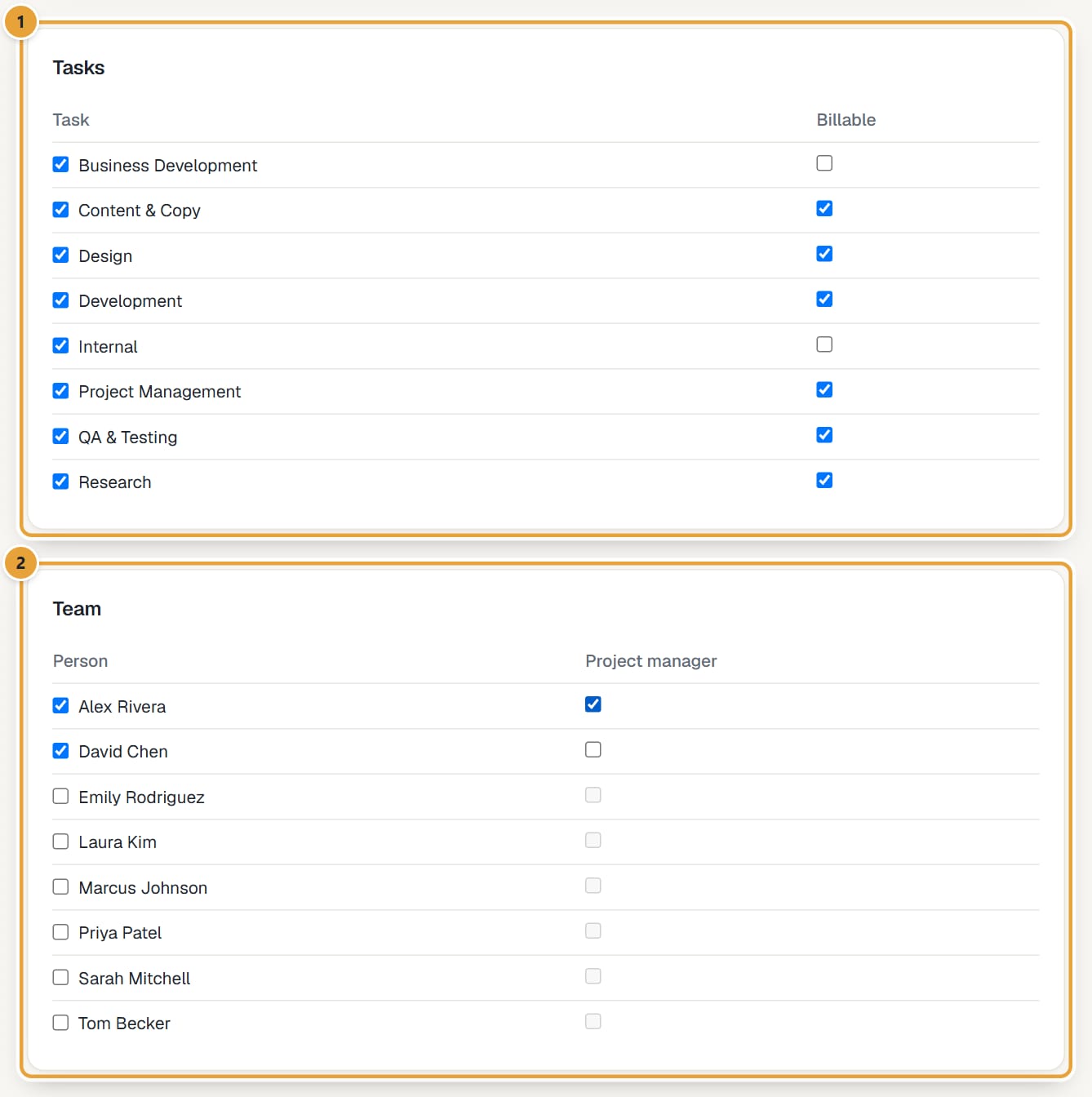
Step 1: Under Tasks, tick the tasks people can track to on this project. Tasks marked Add to new projects are already ticked.
Untick Billable for a task that shouldn't be billed on this project. With Task hourly rates, type each task's Rate (empty means the task's default rate).
 (opens the full-size image)
Step 2: Under Team, tick the people who work on the project, and tick Project manager for whoever should receive its budget alerts.
With Person hourly rates, you can type a Rate for someone on this project; leave it empty to use their default rate on the date of each entry.
Step 3: Click Create project. You land on the project's page.
On a phone, Tasks and Team are lists: tick a task or a person, and their other fields (Billable, Project manager, Rate, Budget) appear under them. The Create project (or Save project) button stays at the bottom of the screen while you scroll, once there is something to save.
The project page
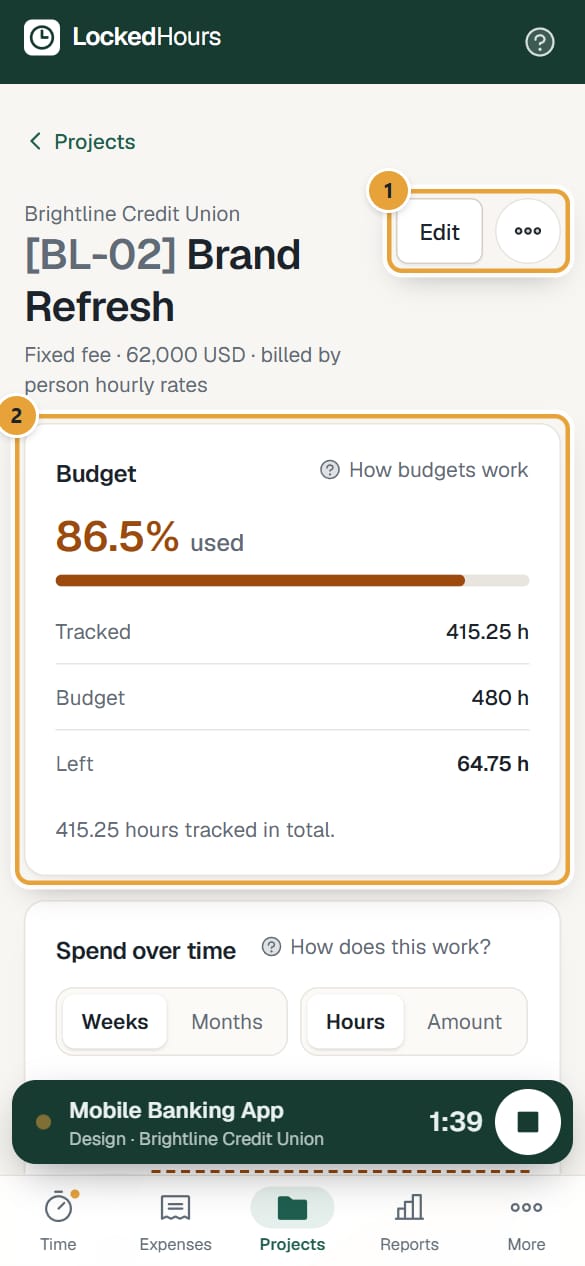
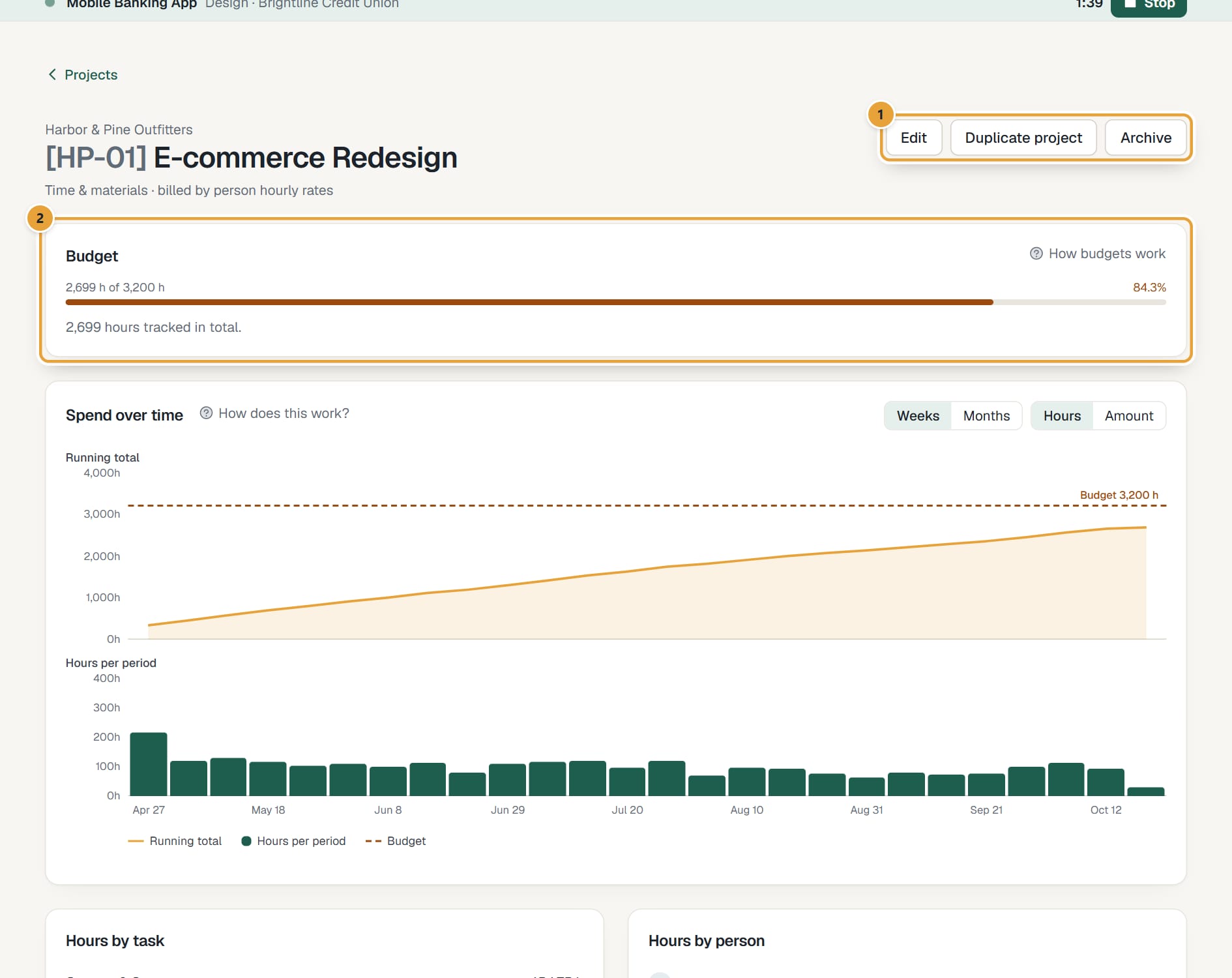
It shows the type and how it bills, a Budget card with how much is used, and Hours by task and Hours by person. Admins and managers see Edit and Archive at the top right. On a phone, ‹ Projects goes back to the list, Duplicate project and Archive (or Restore) are under the ⋯ button next to Edit, and the Budget card shows the percentage used in big, with Tracked (or Spent), Budget and Left (or Over by) below the bar.
 (opens the full-size image)
 (opens the full-size image)
Edit a project
Click Edit on the project page, change anything, and click Save project. Changing rates affects hours tracked from then on; hours already tracked keep their rates.
Common problems
"Give the project a name."
Project name is required.
"No tasks yet. Create them in Tasks."
Your account has no tasks. Create some first: Set up tasks.
A teammate can't see the project
Tick them under Team in the project and save. See I can't see a project when tracking time.
The client isn't in the list
Archived clients aren't offered for new projects. Open the client and tick Active.
Didn’t find what you needed?
Ask in Help inside the app, or email [email protected]. We aim to reply within 2 business days.