Set up tasks and default task rates
Tasks are the kinds of work people track to inside a project. Set them up once, with a default rate and billability, and choose which go into every new project.
Who can do this: Admins and managersUpdated · 2 min read
Add a task
Step 1: Click Projects in the top menu, then Tasks.
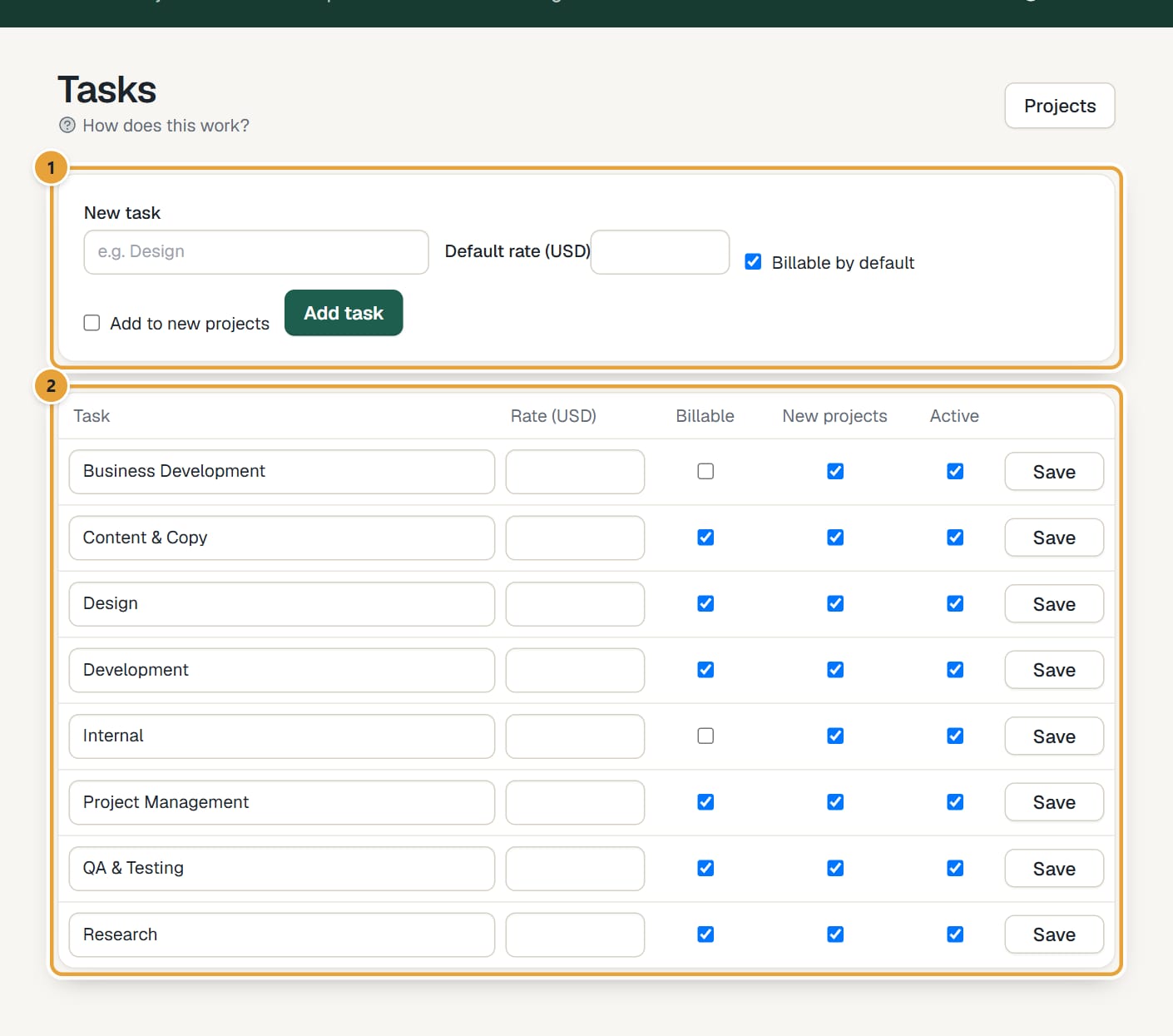
Step 2: Type its name in New task, for example Design.
 (opens the full-size image)
Step 3: Optionally, fill in Default rate: the hourly rate used when a project bills by task rates and doesn't set its own rate for this task.
Step 4: Leave Billable by default ticked for client work; untick it for internal work like meetings.
Step 5: Tick Add to new projects if almost every project needs this task. New projects start with it already ticked.
Step 6: Click Add task.
Change or retire a task
Each task is a row with its Task name, Rate, Billable, New projects and Active settings. Change what you need and click Save on that row. Untick Active to retire a task: it disappears from the time-tracking lists but stays on past entries and in reports.
On a phone, the tasks are a list with each one's rate and settings. Tap a task to change it in a sheet (Save task), or tap New task at the bottom right to add one (Add task). Inactive tasks are marked Inactive.
Tasks on a project
Creating a task doesn't add it to existing projects. Open each project, click Edit, and tick the task in the project's Tasks section. There you can also mark it non-billable for that project only, and give it a project-specific rate. See Create a project.
Common problems
People don't see a new task when they track time
Add it to the project: Edit the project and tick the task under Tasks.
Changing a task's default rate didn't change past entries
That's on purpose: entries keep the rate they were tracked at. See How hourly rates work.
Didn’t find what you needed?
Ask in Help inside the app, or email [email protected]. We aim to reply within 2 business days.