Deactivate or reactivate a person
Deactivating removes a person's access right away and frees their seat. Their time stays in reports and invoices. Reactivate them whenever you need.
Who can do this: AdminsUpdated · 2 min read
Deactivate someone
Step 1: Click Team in the top menu.
Step 2: In the People list, click Deactivate on the person's row (on a phone, tap the person, then Deactivate at the bottom of the sheet).
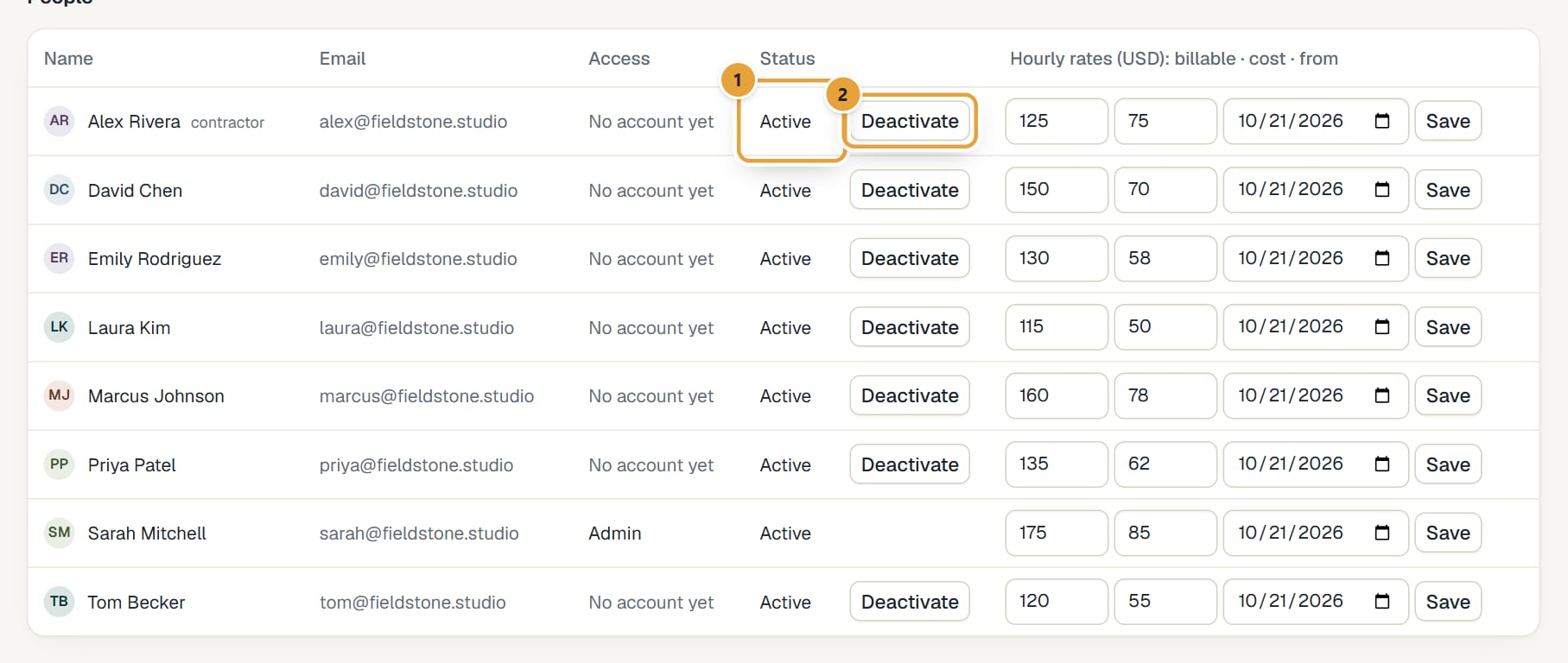 (opens the full-size image)
Step 3: Confirm the message that starts Deactivate …?. The row's Status becomes Deactivated and the button changes to Reactivate.
What deactivating does
- They can't open your account any more, from the next page they load. If they sign in, they see that an admin deactivated their access.
- They stop counting as a seat.
- Everything they tracked stays: hours, rates, reports, invoices and the projects' history. Nothing is deleted.
- A timer they left running is stopped and its time saved. A pending invitation to their email is cancelled.
- They no longer get weekly reminders to log time or budget alert emails.
- Their project assignments are kept, so reactivating them puts everything back as it was.
Reactivate someone
Step 1: In Team, click Reactivate on their row.
Step 2: Read the message next to the button.
Reactivated. They can sign in again. means they still had a LockedHours sign-in and are back with the role they had. Reactivated. We emailed them an invitation to join again. means they had no sign-in (for example, someone imported from Harvest): they join from the email, and their history is linked to them. Without an email, they're marked active but can't sign in.
Common problems
"You can't deactivate yourself. Ask another admin to do it."
Another admin has to deactivate you.
They didn't get the invitation after Reactivate
Ask them to check spam, or send a new invitation from Invite a teammate with the same email. See Invite your team.
Didn’t find what you needed?
Ask in Help inside the app, or email [email protected]. We aim to reply within 2 business days.