Expense categories and unit prices
Categories group expenses in reports. Give one a unit and price (0.67 per mile) and people just type the units.
Who can do this: Admins and managersUpdated · 2 min read
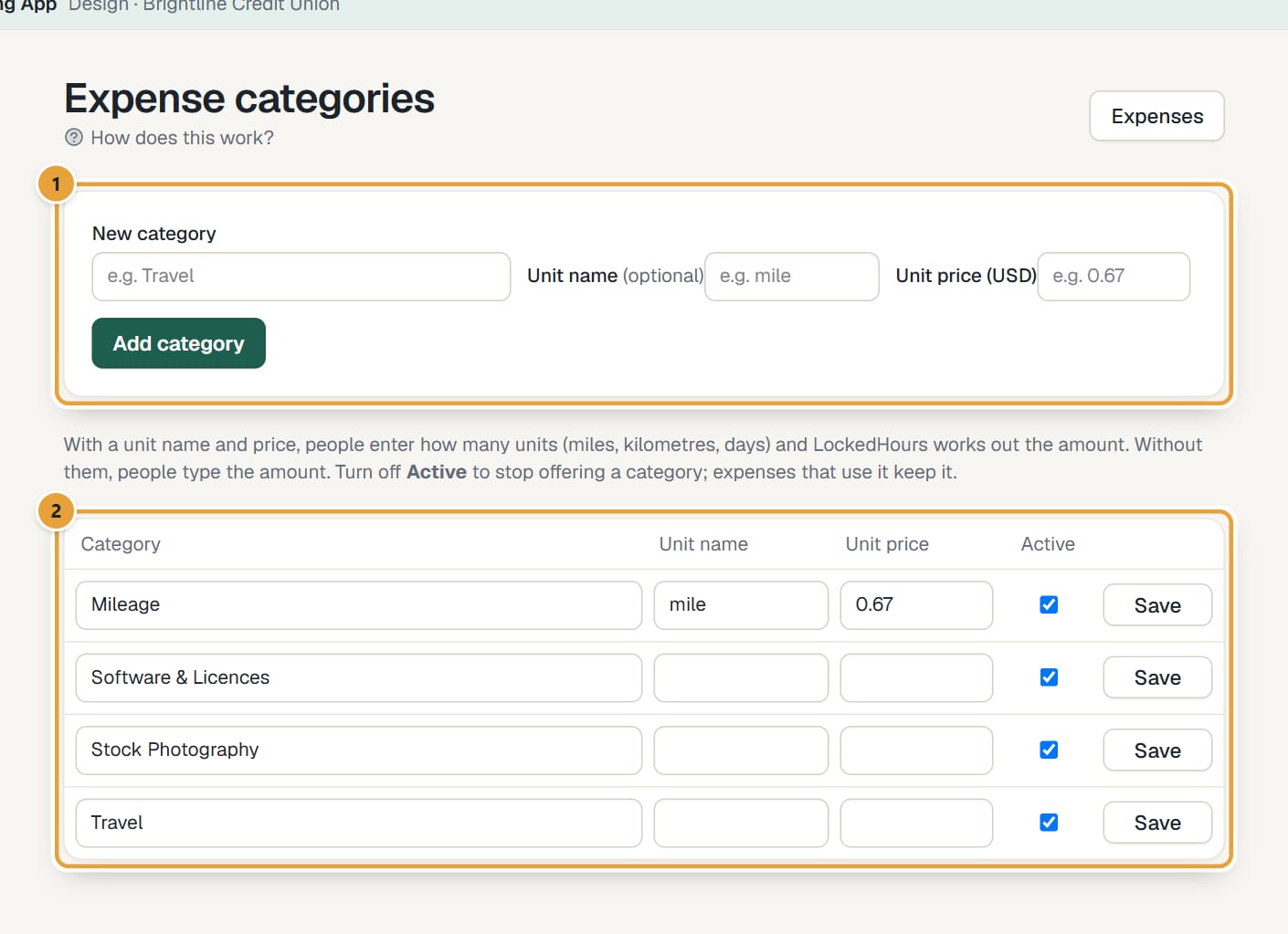
Step 1: Go to Expenses and click Categories (top right). The page is called Expense categories.
Step 2: Type the New category name, for example *Travel*, and click Add category.
 (opens the full-size image)
Step 3: For costs charged per unit, also fill in Unit name (for example *mile*, *km* or *day*) and Unit price. Fill in both or neither.
The price is in your account's currency. On the expense form, people then enter Units and see the amount worked out.
Step 4: To change a category, edit its row and click Save. Untick Active to stop offering it; expenses that already use it keep it.
On a phone, Categories is under the ⋯ button on Expenses. The categories are a list (with their price per unit, or Amount typed); tap one to change it in a sheet (Save category), or tap New category at the bottom right (Add category).
Accounts imported from Harvest already have Harvest's categories. Categories can't be deleted, only made inactive, so old expenses always keep theirs.
Didn’t find what you needed?
Ask in Help inside the app, or email [email protected]. We aim to reply within 2 business days.