Record payments, write off or reopen an invoice
Record each payment you receive, in full or in part. The invoice becomes paid when nothing is left due. Write off what you won't collect.
Who can do this: Admins and managersUpdated · 2 min read
Record a payment
Step 1: Open the invoice from Invoices (the Open and Overdue tabs list unpaid ones).
Step 2: Under Record a payment, check the Amount (it starts with what's due) and the Date, and add Notes like "Bank transfer".
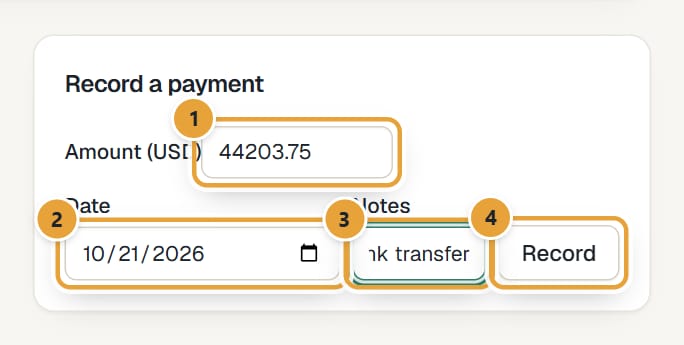 (opens the full-size image)
Step 3: Click Record. You'll see Payment recorded., and the payment is listed under Payments.
On a phone, tap Record payment at the bottom of the screen: a sheet opens with Amount, Date and Notes. Tap Record payment in it to save.
- A partial payment leaves the invoice open, showing what's still due.
- When payments cover the total, it becomes paid.
- To undo a payment, click Remove next to it under Payments.
- The Invoices list shows the Outstanding total per currency, and each invoice's Due amount.
Write off an invoice
If you won't collect an open invoice, click Write off (on a phone, it's under ⋯). It becomes closed: it stops counting as outstanding and gets no more reminders. Click Reopen to undo it. To cancel an invoice for accounting purposes, issue a credit note instead: Correct an invoice with a credit note.
Common problems
"Issue the invoice (send it or mark it as sent) before recording payments."
Drafts can't take payments. Issue it first.
"Enter an amount above zero."
Type the amount received, with a dot or comma for decimals.
There's no Record a payment box
The invoice is a draft, already paid, closed, or a credit note (credit notes don't take payments).
Didn’t find what you needed?
Ask in Help inside the app, or email [email protected]. We aim to reply within 2 business days.