Recurring invoices for retainers and maintenance plans
For retainers and maintenance plans, set up an invoice once and LockedHours creates it every week, month, quarter or year, and can email it for you.
Who can do this: Admins and managersUpdated · 2 min read
Create a recurring invoice
Step 1: Go to Invoices, click Recurring, then + New recurring invoice.
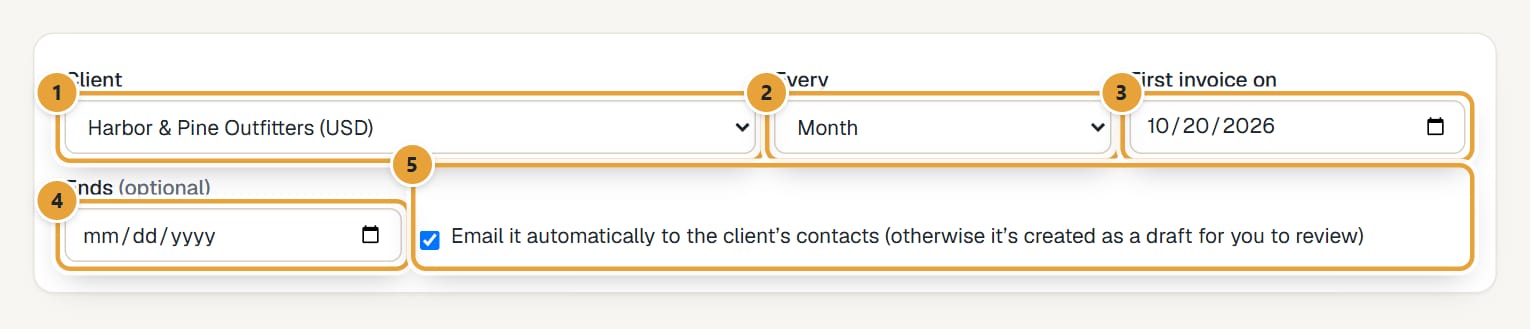
Step 2: Choose the Client and how often in Every: Week, Month, Quarter or Year.
 (opens the full-size image)
Step 3: Set First invoice on (the date of the first one) and, optionally, Ends.
Step 4: Leave Email it automatically to the client's contacts ticked to issue and email each invoice, or untick it to get a draft each time for you to review.
Step 5: Fill in payment terms, taxes, discount, subject and notes.
Step 6: Edit the lines. It starts with one Monthly retainer line: set its Unit price, and add more lines if needed.
Step 7: Click Save recurring invoice. It appears in the list with its amount, how often, the next date and whether it's sent automatically or created as draft.
What happens on each date
- On the date, LockedHours creates the invoice dated that day. Monthly, quarterly and yearly invoices keep the same day of the month (the 31st becomes the last day in shorter months).
- With automatic email on, it's issued and emailed with its PDF to every contact of the client that has an email. If the client has no contacts with email, it's issued but not sent: send it yourself.
- If it can't be issued (something required is missing, or your country can't issue from LockedHours), it stays a draft for you to fix.
- Missed dates are caught up one by one. After the Ends date, the recurring invoice stops.
- Nothing is created after the free trial has ended.
Pause or resume
In the Recurring invoices list, click Pause to stop it, and Resume to start again.
Didn’t find what you needed?
Ask in Help inside the app, or email [email protected]. We aim to reply within 2 business days.