Set hourly and cost rates, with a start date
Each person has a default billable rate (what you charge for an hour of their time) and a cost rate (what that hour costs you). Change them from any date.
Who can do this: AdminsUpdated · 2 min read
Set or change a person's rates
Step 1: Click Team in the top menu and find the person under People.
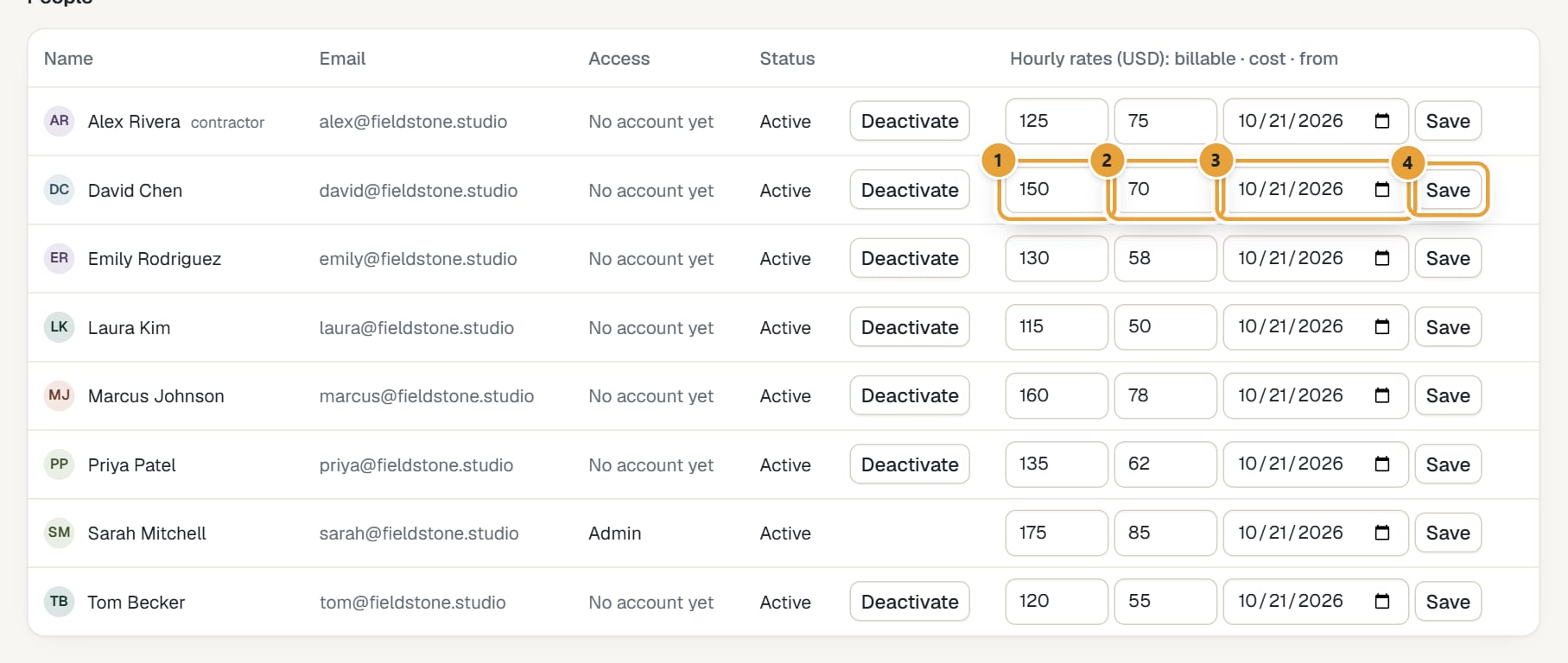
Step 2: In the last column (Hourly rates: billable · cost · from), type the billable rate in the first box and the cost rate in the second.
Leave a box empty to keep that rate as it is.
 (opens the full-size image)
Step 3: Set the date the new rates start in the third box. It starts with today.
Step 4: Click Save on that row. On a phone, tap the person in People: the sheet has Billable, Cost and From, and Save rates.
How the start date works
- The new rate applies to time tracked on or after the start date. The previous rate stays in force before it.
- Hours already tracked keep the rates they were saved with. Changing a rate doesn't re-price them.
- Saving another rate for the same start date replaces it.
Where these rates are used
- The billable rate is used on projects billed by Person hourly rates, unless the project sets its own rate for that person. See How hourly rates work.
- The cost rate is used on every project, for the Time cost and Profit in Reports → Profitability.
Common problems
Nothing happened when I clicked Save
A rate wasn't a valid number (use digits, with a dot or comma for decimals), or the date was empty. Fix it and save again.
I don't see the rates column
Only admins see and change rates.
Didn’t find what you needed?
Ask in Help inside the app, or email [email protected]. We aim to reply within 2 business days.