Time and Detailed reports
The Time tab totals hours and amounts with charts, grouped how you like. The Detailed tab lists every entry with its status.
Who can do this: Everyone (members see only their own time)Updated · 2 min read
The Time tab
 (opens the full-size image)
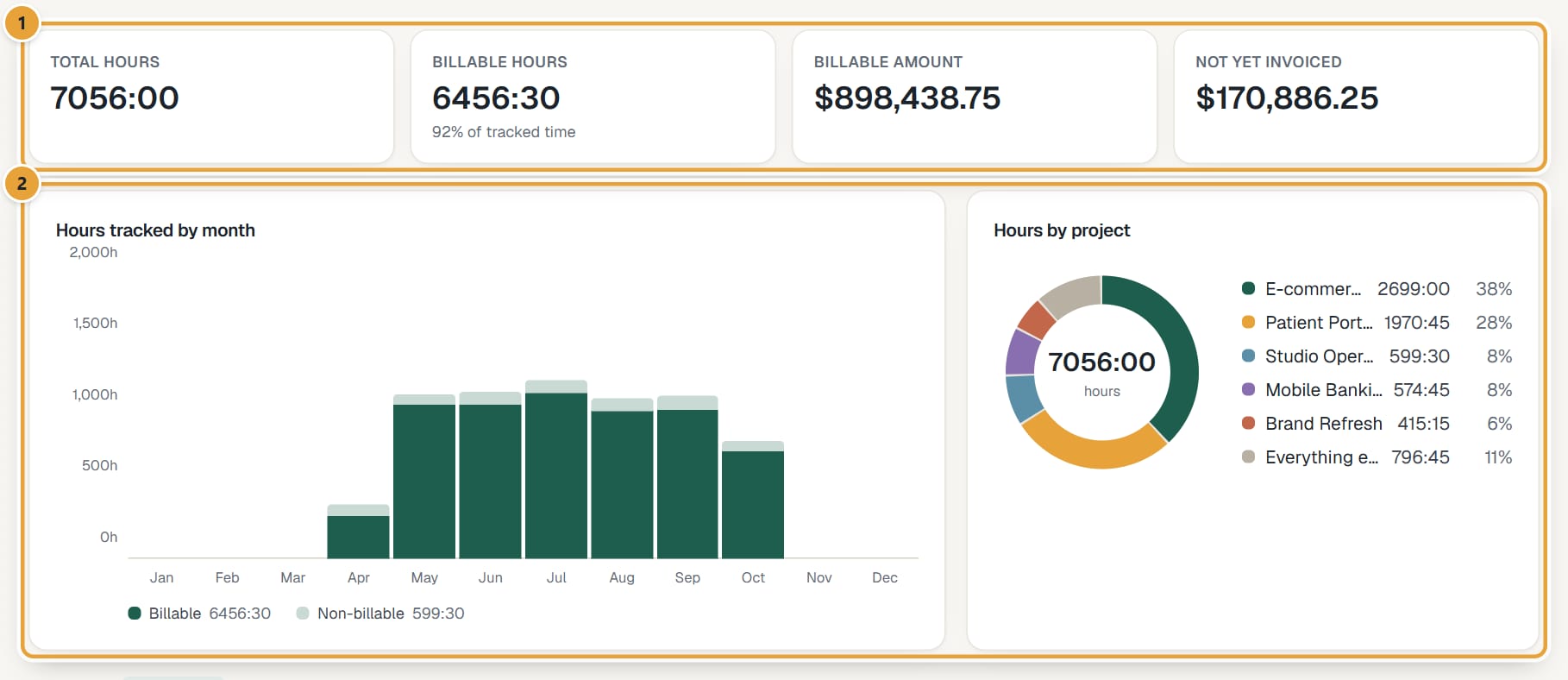
- Four totals at the top: Total hours, Billable hours (with the % of tracked time), and for managers Billable amount and Not yet invoiced. Amounts in different currencies are shown side by side.
- Hours tracked by day, week or month (depending on the period length), split into billable and non-billable.
- A donut with the top five, plus Everything else.
- A table with Hours, Billable hours, and for managers Billable amount and Not invoiced.
Change the grouping with the buttons above the table: Clients, Projects, Tasks or Team. The donut and the table follow.
The Detailed tab
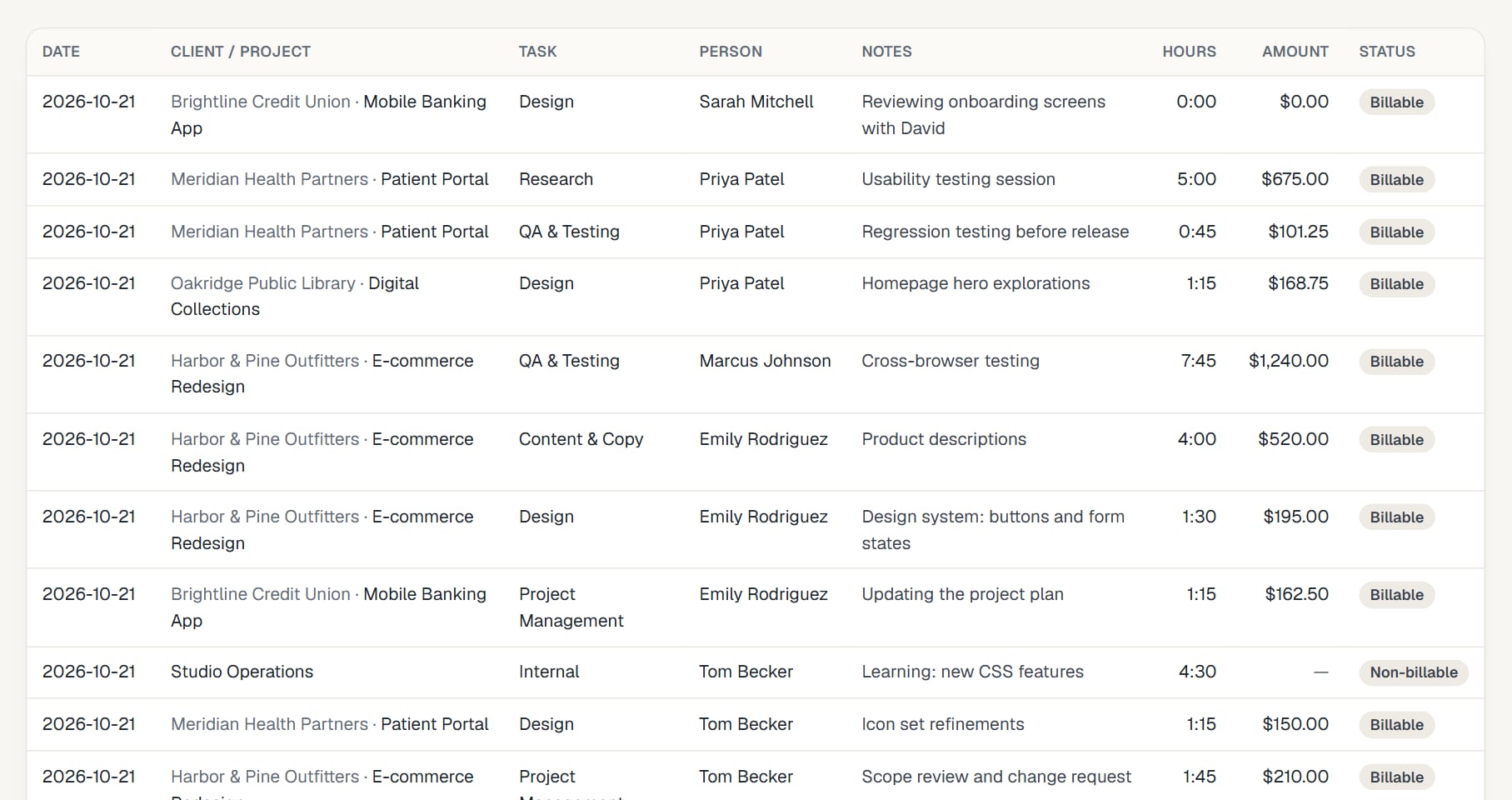
One row per entry: Date, Client / project, Task, Person, Notes, Hours, Amount (managers only; no rate when a billable entry has no rate) and Status (Invoiced, Billable or Non-billable, plus Submitted or Approved for time submitted for approval or approved, here or in Harvest).
 (opens the full-size image)
On a phone, Detailed starts with the same four totals as Time, then lists the entries grouped by day, each day with its total. Each entry shows project and task, the person (or the client, for members) and the notes, the hours, and Invoiced, Billable or Non-billable. It shows 50 entries at a time: tap Load more at the bottom for the next 50.
Common problems
The totals don't match what I expected
Check the period dates under the title and the Billable filter. Members only see their own time.
An amount shows two currencies
Clients in different currencies are never added together; each currency is shown on its own.
Didn’t find what you needed?
Ask in Help inside the app, or email [email protected]. We aim to reply within 2 business days.