Reports: periods, filters and tabs
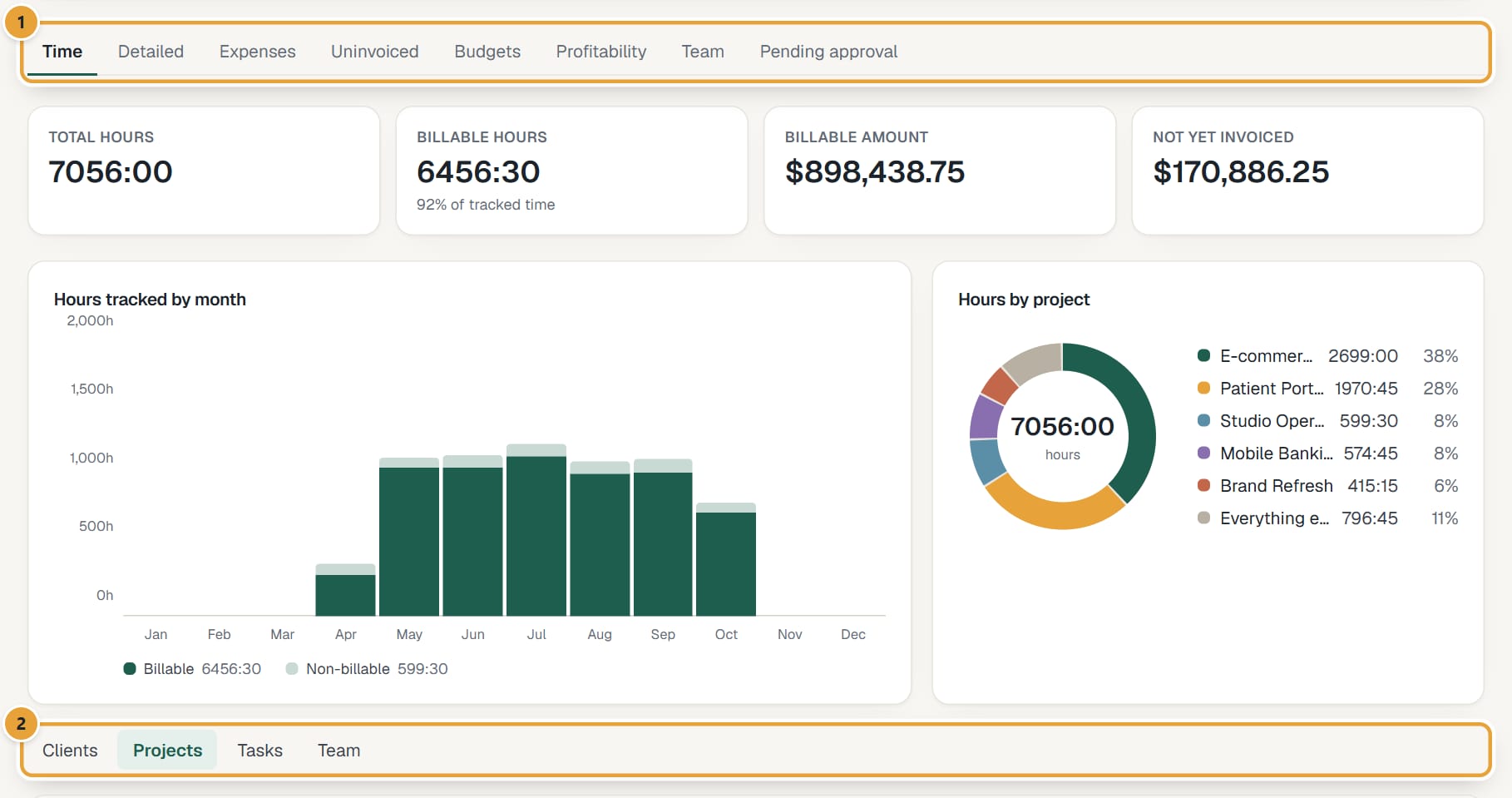
One Reports page with up to eight tabs. Pick a period and filters once; they stay as you switch tabs, and Export CSV downloads what you see.
Who can do this: Everyone (members see only their own time)Updated · 2 min read
Choose the period and filters
Step 1: Click Reports in the top menu. It opens on This month.
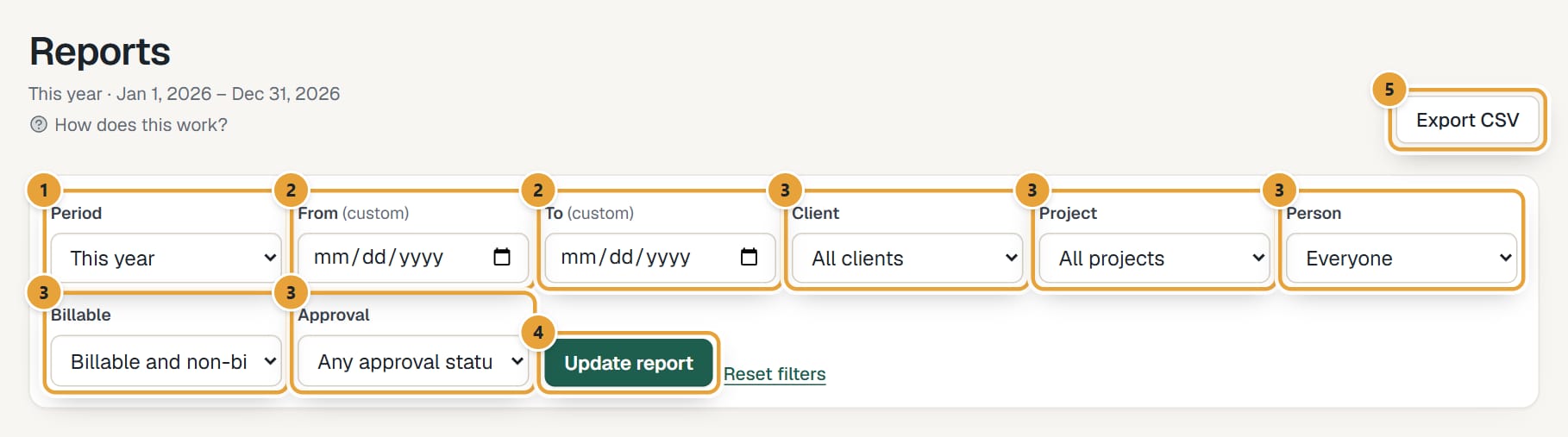
Step 2: Choose a Period: This week, Last week, This month, Last month, This quarter, Last quarter, This year, Last year, All time or Custom.
For Custom, also fill in From and To.
 (opens the full-size image)
Step 3: Narrow it down with Client, Project, Person (managers and admins only), Billable (Billable only or Non-billable only) and Approval (Not submitted, Submitted (pending) or Approved; it filters time, not expenses).
Step 4: Click Update report. The dates covered appear under the title. Reset filters clears everything but the tab.
On a phone
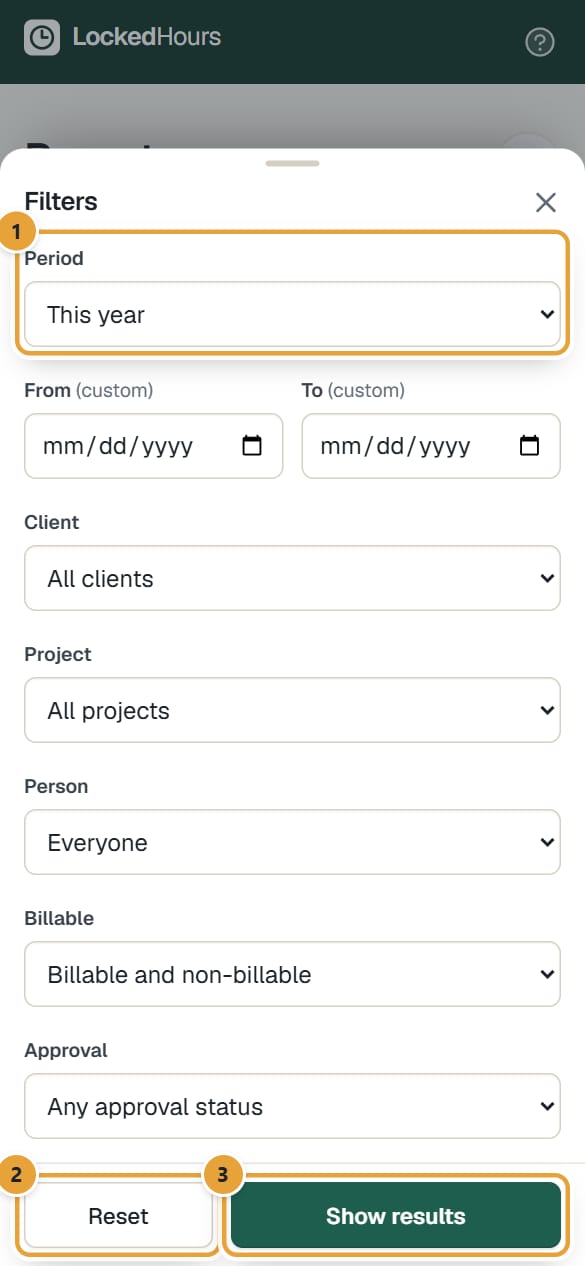
The filters fold away. Under the title, one button shows the period and its dates (This month · Oct 1 – Oct 31) and another says Filters, with how many filters are on, for example Filters (2). Tap either one: the same fields open in a sheet from the bottom. Tap Show results to apply them, or Reset to clear everything but the tab. Export CSV is under the ⋯ button at the top right.
 (opens the full-size image)
The tabs
| Tab | What it answers | Who sees it |
|---|---|---|
| Time | How many hours, billable share and amounts, grouped by client, project, task or person, with charts. | Everyone |
| Detailed | Every time entry, one per row. | Everyone |
| Expenses | Expenses by category, project or person: billable, invoiced and not yet invoiced. See The Expenses report. | Everyone (members: their own, without amounts) |
| Uninvoiced | Billable work not on any invoice yet, per project. | Admins and managers |
| Budgets | How much of each project's budget is used. | Admins and managers |
| Profitability | Revenue, cost, profit and margin per project. | Admins and managers |
| Team | Hours, billable percentage and utilization per person. | Admins and managers |
| Pending approval | Weeks submitted for approval and still waiting, that you can approve. Only when your account requires timesheet approval. See Approve or reject timesheets. | Admins and managers |
 (opens the full-size image)
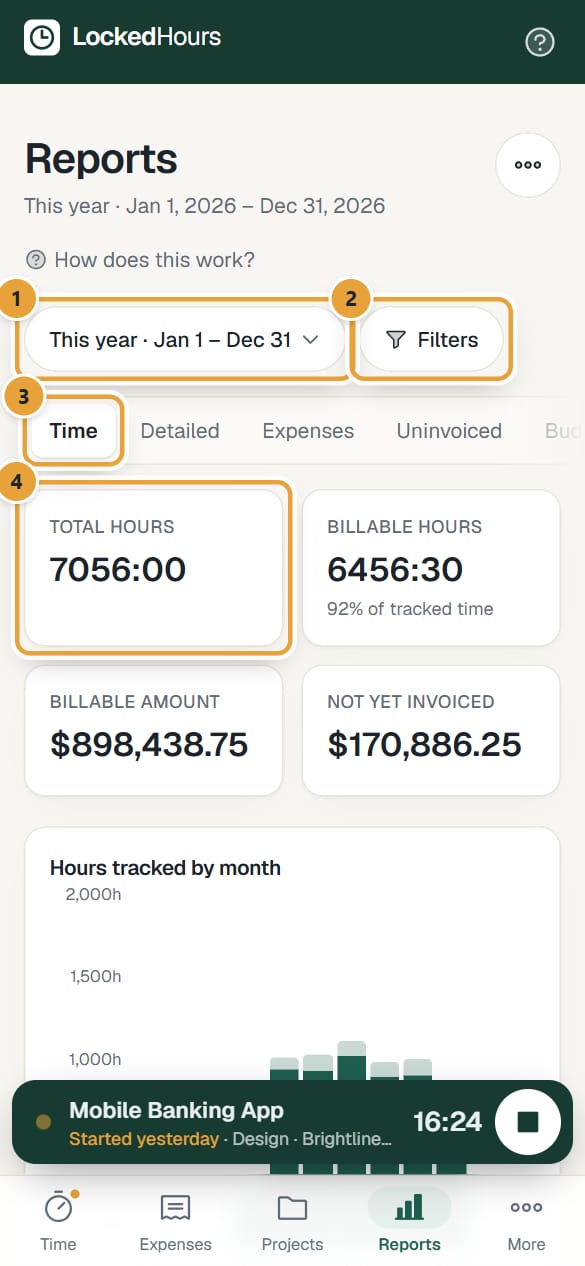
On a phone the tabs are one row that scrolls sideways; swipe it to reach Budgets, Profitability or Team. Each tab shows a list instead of a table: one row per line of the report, with its main figure on the right, and the total in a card at the end.
 (opens the full-size image)
Members see your own time (or your own expenses) next to the period: their reports only include their own hours and expenses, and never show amounts.
Share a report
The filters are part of the page address. Copy the address from your browser and send it to a colleague on your account: they see the same report (with what their role allows).
Didn’t find what you needed?
Ask in Help inside the app, or email [email protected]. We aim to reply within 2 business days.